
TOPICS
Use the MGI dashboard
After signing in, you will arrive at the MGI home screen. From here, you can review announcements, access the Technical Manual, and use the navigation icons on the left side of the screen to move to different areas of MGI.
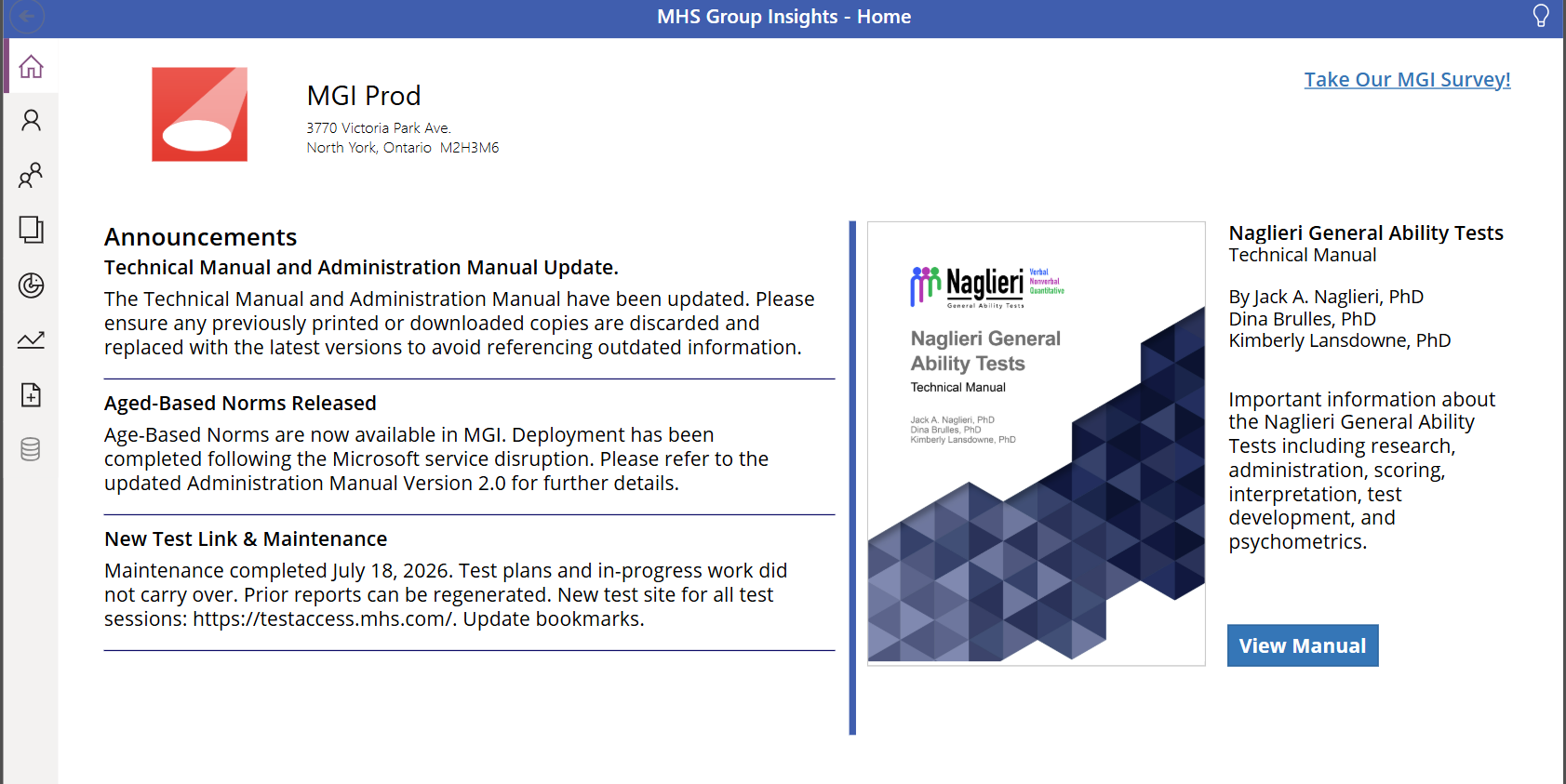
The options available to you depend on the permissions assigned to your account. If an icon is unavailable or a section is missing, contact your MGI Administrator to confirm that you have the permissions required for that task.
What you can do from the dashboard
- Manage users: Add and manage district users, update permissions, adjust visibility, and activate access for imported teachers.
- Manage students: Add or edit individual student information when this permission is assigned.
- Manage test plans: Create and download test plans for the students who will complete assessments.
- Track completion: Review testing progress and identify which assessments students have completed.
- Generate reports: Create reports and view assessment results.
- Upload student data: Upload and update student roster information when this permission is enabled and the function is appropriate for the district’s rostering process.
Announcements and updates
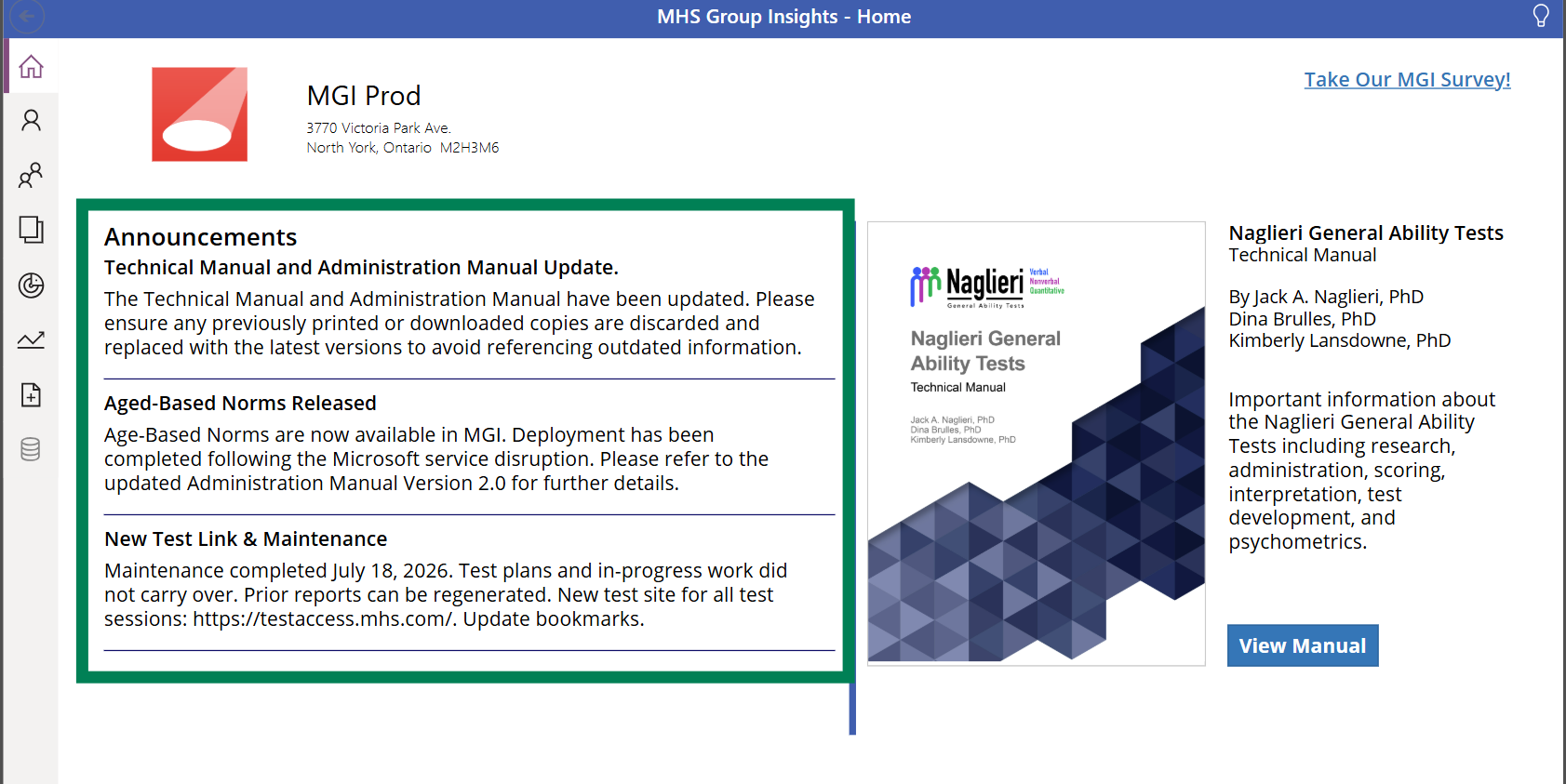
Review the announcements area for information that MHS wants MGI users to be aware of. Users should check this area when they sign in so they do not miss important platform information.
Technical manual
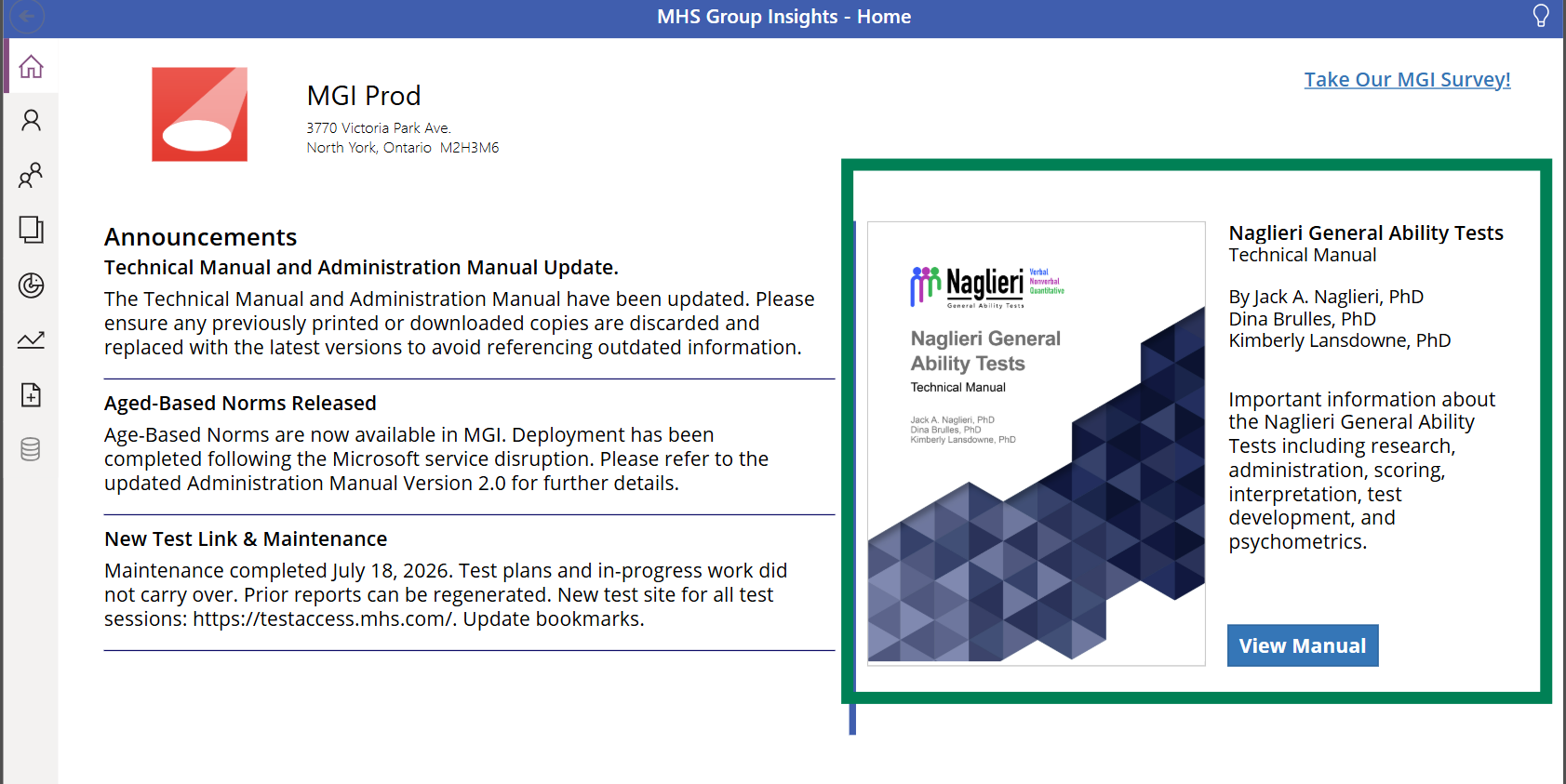
The MGI Technical Manual is available from the home screen and can be downloaded as a PDF. This resource contains more detailed product, assessment, and interpretation information.
MGI navigation is permission-based. An icon may be missing, unavailable, or greyed out if your account does not have the corresponding permission.
This is usually an access issue rather than a sign-in issue. Contact your MGI Administrator and identify the specific feature or task you need to access. If the administrator confirms that your permissions are correct and the feature remains unavailable, contact MHS Customer Service.
The options shown on the dashboard depend on the permissions assigned to your account. If you are unsure whether you should have access to a feature, contact your MGI Administrator and explain the task you need to complete.
The option may be unavailable because your account does not have the required permission. Sign out and sign back in to confirm that your latest access settings are applied. If the option remains unavailable, contact your MGI Administrator.
Review the Announcements and Updates area on the MGI home screen for information that MHS wants MGI users to be aware of.
Access the MGI Technical Manual from the home screen. The manual can be downloaded as a PDF and contains detailed product, assessment, and interpretation information.
If your MGI Administrator confirms that your permissions are correct and the feature remains unavailable, contact Customer Service at [email protected].