TOPICS
Student access code trouble shooting
If a student has been given the wrong access code, or if an additional student needs to be added the same day, contact your administrator.
TroubleshootingThe following tables describe some potential disruptions and technical issues that may occur during the administration of the Naglieri General Ability Tests, along with rrecommended solutions.
| Issue | Solution |
|---|---|
| If a student wants/needs to stop the test | Encourage them to finish but do not push if they are adamant about stopping. If you need to stop the test, and the student is using an external keyboard, press “Alt” + “S” on a Windows computer or “Option” + “S” on a Mac. If using a tablet with no external keyboard, tap and hold the keyboard icon in the top right side of the screen for 5 seconds, then tap the “S”. The student’s responses during the test will be saved and they may close the browser. Make a note that the student stopped the test and try to have the student complete the test at a later time. The student can resume from where they left off by logging in with their personal access code. Note that, if possible, the student should complete the missed test before joining the group for the next test. |
| If a student’s behavior becomes disruptive to the group | Stop testing by having all the students close the browser. This will pause the timer for all students. Resume testing when the source of the disruption is removed, and the group has calmed down. |
| If there is disruptive noise or weather | Stop testing by having all the students close the browser. This will pause the timer for all students. Resume testing when the source of the disruption stops. |
| If the student information (name, DOB, etc.) on the test doesn’t match the student taking the test | Check to determine if the discrepancy is due to a typographical error, omission, or other data entry problem by having the student log out and re-enter the access code. If the discrepancy still remains, contact your administrator to get a new access code assigned for the student. |
| If the student’s grade form is incorrect | Contact the Assessment Coordinator who created the test sessions and ask that they create a new testing session for that student. This student may need to be tested individually outside of the group testing session. |
| If a student prematurely advances to the next test | A five-minute timer has been implemented at the end of each test to prevent students from advancing to the next test prematurely. After the timer ends, if the student prematurely advances, and if using an external keyboard, then press “Alt” + “S” on a Windows computer or “Option” + “S” on a Mac to save the student’s responses, and then close the browser. If using a tablet with no external keyboard, tap and hold the keyboard icon in the top right side of the screen for 5 seconds, then tap the “S”. Have the student resume their test after the instructions have been given to the rest of the group and the students have begun working through the items. |
| If a student’s access code is missing | Contact your administrator to get a new access code assigned for the student. |
| Issue | Solution |
|---|---|
| Browser or tab is accidentally closed | Log in to the account again using the same access code. The student will return to the same screen at which the assessment was closed. |
| Instructional video does not play, lags, or freezes | If the video does not play, lags, or appears frozen, and if using an external keyboard, instruct the student to press “Alt” + “K” on a Windows computer or “Option” + “K” on a Mac, which will take them to a comic strip version of the instructions. If using a tablet with no external keyboard, tap and hold the keyboard icon in the top right side of the screen for 5 seconds, then tap the “K”. |
| Images on the screen do not load | Refresh the screen using the internet browser’s refresh button. |
| Internet connectivity lost | If internet connectivity is lost, a pop-up with the following message will appear: Network connection lost: Please contact your administrator. The pop-up should disappear when a connection is re-established. If it does not disappear, refresh the screen using the internet browser’s refresh button. Note that the timer will pause while the internet connectivity is lost and automatically resume when connectivity is restored. |
| Power outage | Log in to the account again using the same access code. The student will return to the same screen at which the assessment was closed. |
| Test appears cropped within the browser | If students are using a computer, laptop, or Chromebook, instruct them to press the “Ctrl” + “-“ keys on a Windows computer or “Command” + “-” on a Mac to zoom out. If students are using an iPad, then instruct them to double tap on the screen. |
| Cannot log in to test with access code | Contact your administrator to get a new access code assigned for the student. |
| Wrong/different test appears on the home screen | After logging in, if you or the student sees a test that is different from the rest of the students, then the correct test was not assigned to them. Contact the Assessment Coordinator to have the correct test assigned to the student. This student may need to be tested individually outside of the group testing session. |
| Testing device does not work | If the testing device does not work before the student starts the test, use one of the backup devices prepared before testing. If the testing device stops working after the student starts the test, and if using an external keyboard, then press “Alt” + “S” on a Windows computer or “Option” + “S” on a Mac to save the student’s responses. If using a tablet with no external keyboard, tap and hold the keyboard icon in the top right side of the screen for 5 seconds, then tap the “S”. Close the browser and resume testing on one of the backup devices. |
| Video is opened in full screen mode | In this instance, the forward arrow used to advance to the next screen will not be visible. Press the “Esc” key to exit full screen and then click the forward arrow. |
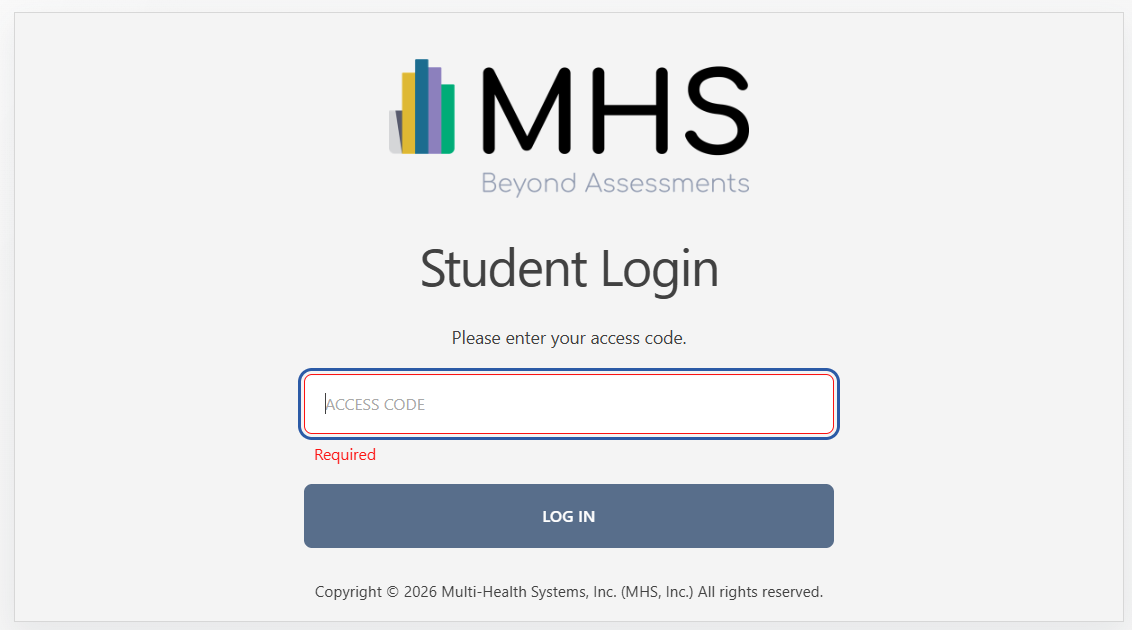
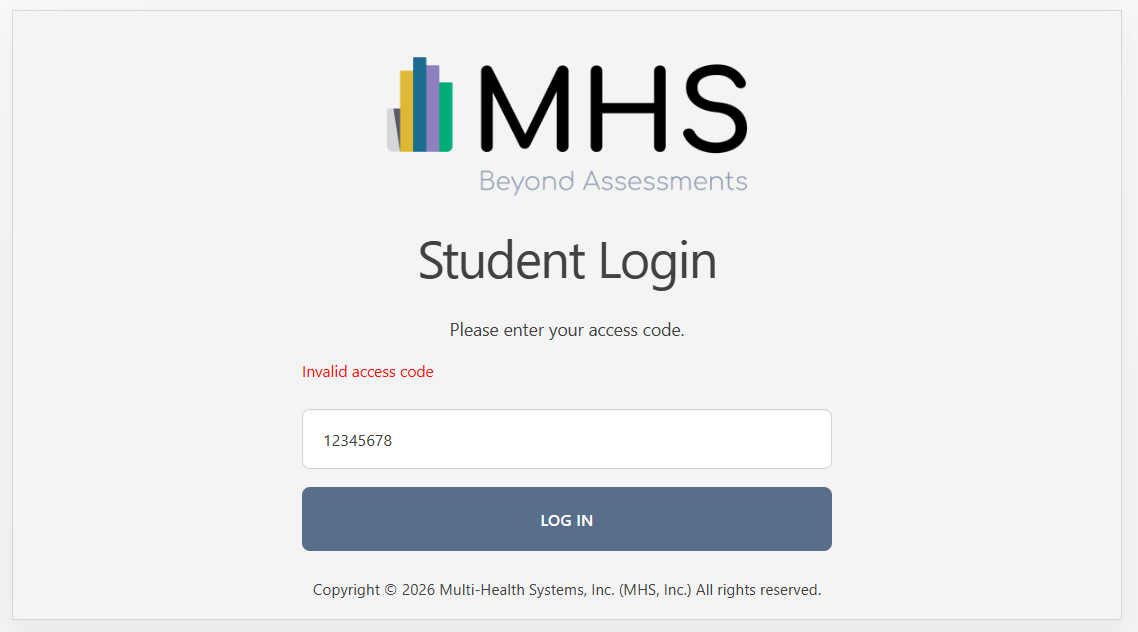
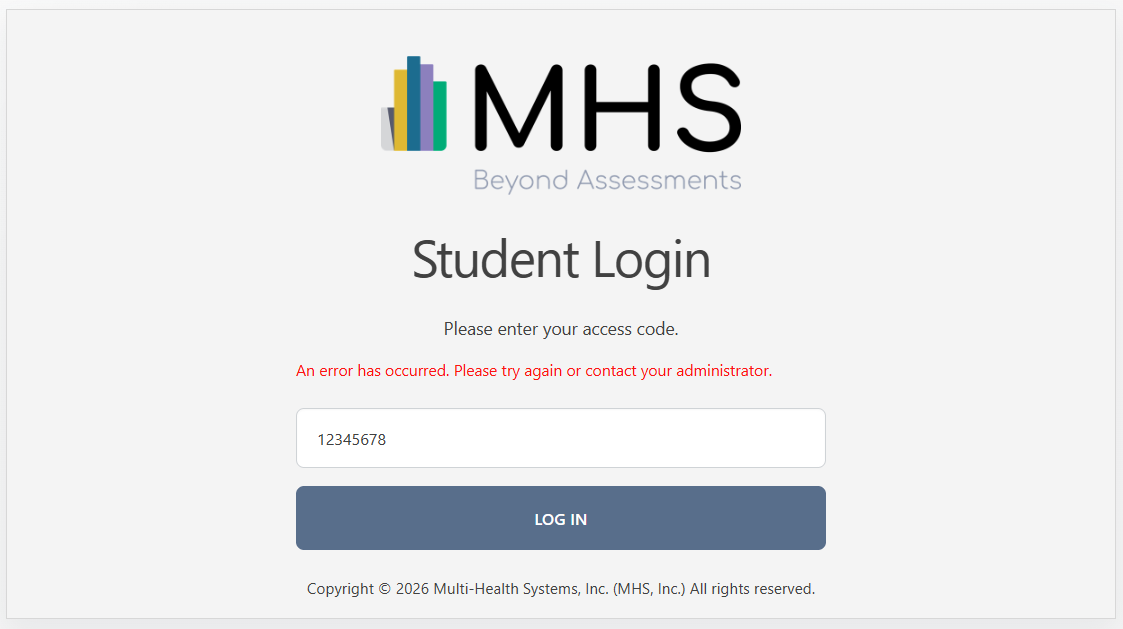
Test Access UI Error Screens and Solutions
| Issue | Description | Solution |
|---|---|---|
| Code not provided |
|
Student must enter their assigned access code to access the test. |
| Access code not found |
|
Contact your administrator to get a new access code assigned for the student. |
| Not able to connect to backend/unhandled error |
|
Try again or contact your administrator. |
| Access code expired |
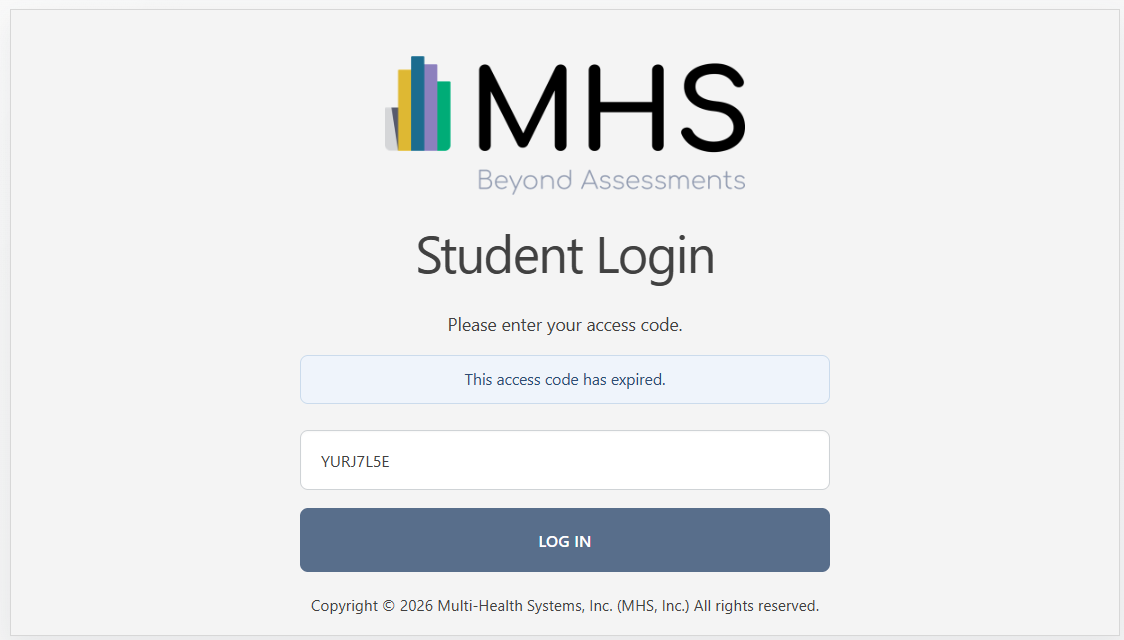
|
Contact your administrator to get a new access code assigned for the student. |
| All tests completed for the access code |
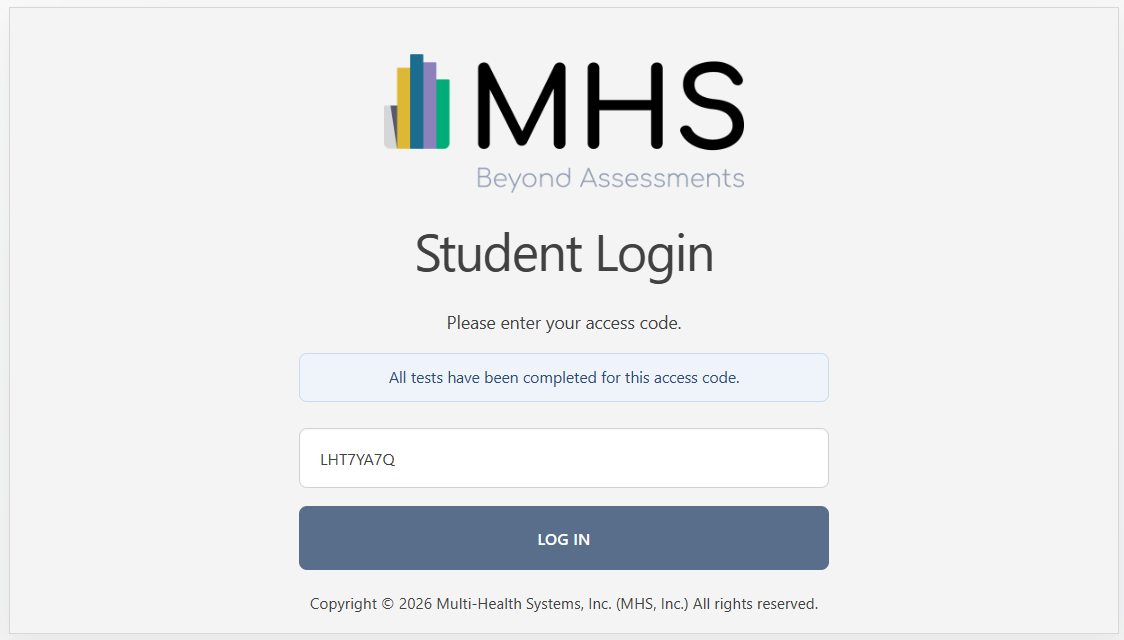
|
If the student was provided a link that has already been used, contact your administrator to get a new access code assigned for the student. |
SSO Trouble shooting
Troubleshooting
The following tables describe the potential disruptions and technical issues that may occur during the
administration of the Naglieri General Ability Tests when backend services are unavailable or fail to respond
within expected timeframes, along with recommended solutions for each scenario.
Expected Student SSO Workflow
All students using the MHS Student Application access the Naglieri General Ability Tests through a centralized
SSO validation flow. As a student progresses through the workflow, the system evaluates service availability and
response timing at each stage before allowing test launch.
Student launches MHS Student App
District Authentication
(OAuth via Clever / ClassLink or LTI via Canvas / Schoology)
MHS SSO Services
(Azure-hosted resources)
Test Availability & Launch
If all services respond as expected, the student is successfully directed to the test.
If a service is unavailable or does not respond within the expected timeframes, the workflow branches to a defined error screen, as outlined in the error paths that follow.
| Issue | Description | Solution |
|---|---|---|
| 503-Service unavailable (Service is temporarily down) |
Can occur during communication between MHS backend services (e.g., SSO and test launch
services). A backend service is temporarily unavailable due to maintenance or deployment activity. The issue is temporary and service-side, not user-related. 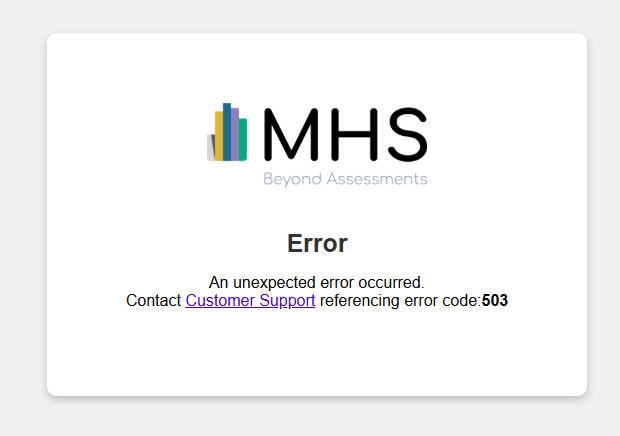
|
Refresh the page or try again in a few minutes. If the disruption originates from Azure infrastructure, then resolution depends on service recovery and must be waited out. |
| 500 / 502 / 504-Other server-side issue |
Can occur when a backend service encounters an internal failure or does not respond within expected
timeframes.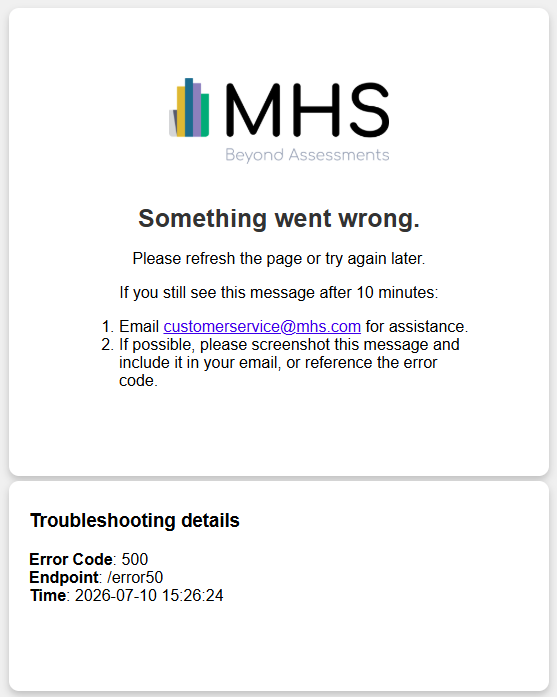
|
Contact Customer Support referencing error code 500, 502, 504. |
| Incomplete SSO setup on MGI |
Can occur when a district launches the student SSO app before completing the required SSO
integration steps in MGI. This is not a system outage or server failure. Unbranded black screen (No error message is displayed to the user.) 
|
Contact Customer Support or the Help Site to provide step-by-step instructions to complete SSO setup in MGI. |
| User not found |
Can occur during MHS SSO validation, after successful district authentication. It is a data-related issue, not a system or availability issue. It indicates a student record with the login email cannot be located in MGI. 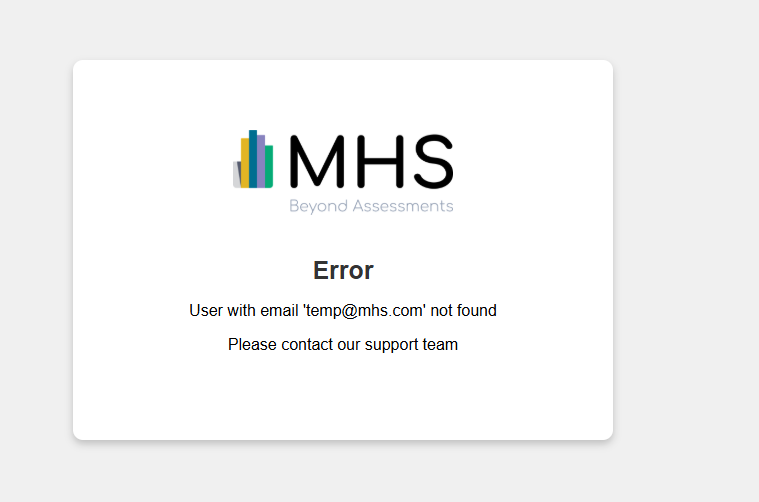
|
Contact Customer Support referencing the error User Not Found. If duplicates are returned, the district is instructed to:
|
| Access code not found |
Can occur during test availability validation after successful authentication and student
validation. The student logs in via their district portal and launches the MHS Student App. The system cannot locate an access code tied to an active test plan. The student sees the "Access not found" error message. 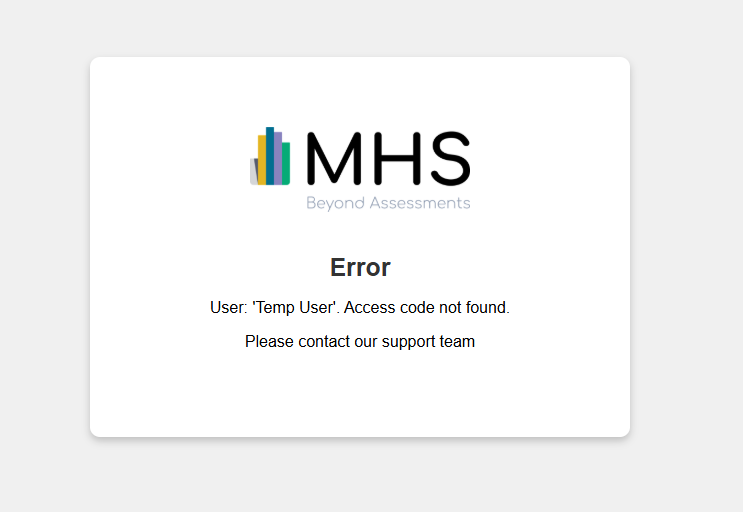
|
Check that a test plan exists for the student. If no test plan is found, the district is instructed to generate a new test plan or edit the student to an active test plan. If the issue persists, contact Customer Support referencing the error Access Code Not Found. |