
TOPICS
Naglieri General Ability Tests Functionality and Administration Demo Videos
Step-by-step instructions modeling the test administration process and scripts are shown below for the Naglieri General Ability Tests™ (Naglieri–Verbal, Naglieri–Nonverbal, and Naglieri–Quantitative).
How to access your Test Plan
If you are assigned a Test Plan as the Teacher or Proctor, a Test Plan should have been provided to you by the administrator. The Test Plan includes the details needed to administer the assessment, including the order of the tests and the student access information (e.g., access codes or QR codes, depending on how the testing has been set up). If you have not received the Test Plan, please contact your administrator.
Preparation
- Open the administration manual to the test directions.
- Print the directions if needed.
Logging In
Test Administrators should follow one of the three login methods outlined below.
Important: Consult the Assessment Coordinator prior to test day to confirm the appropriate login method previously arranged.
-
Test Plan PDF Starting Point
To access the test with the test slip, students can either:
-
a) Open test with URL
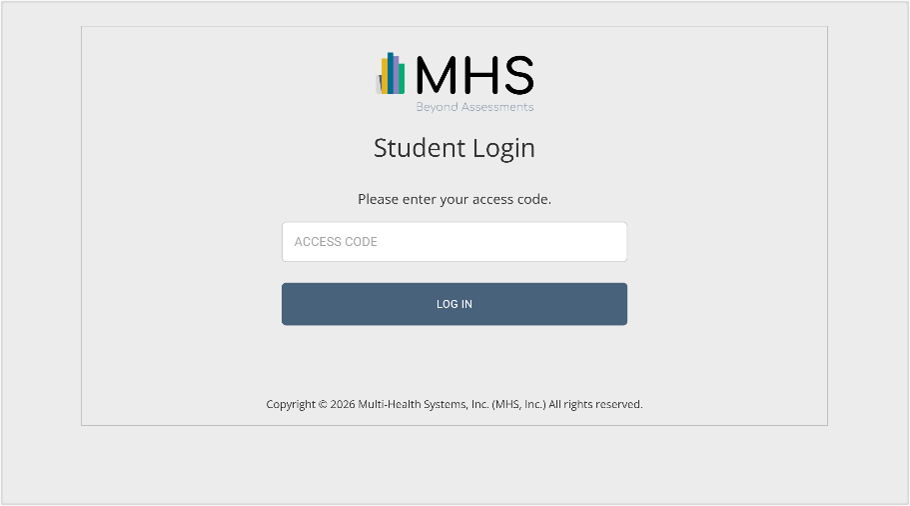
Direct students to enter the test URL on their test slip in their browser (testaccess.mhs.com) and manually enter the access code on the Login page.
-
b) Open test by scanning QR code
Direct students to scan the QR code on their test slip using their testing device.
Note: Once students scan their QR code, they are routed to the Home Screen page where their code is automatically entered and they can view the name of the assigned test.
For Kindergarten and Grade 1 students, open the link and enter the login information for them.
-
a) Open test with URL
-
Direct SSO Access Starting Point
To access the test with the MHS Student App:
- a) Direct students to open the MHS Student App inside their LMS (for example, Clever or ClassLink).
Note: Once students open the MHS Student App, they are routed to the Home Screen page where they can view the name of the assigned test.
| Image Examples of the Login Page (Access Code Page) | |
| Access code field not filled in |
|
| Access code field filled in |
|
Administer the Test
The test(s) have been enabled in the order in which they have been scheduled to be administered by the Assessment Coordinator. The order can be found in the Test Plan. If using the Direct SSO Access method, consult with the Assessment Coordinator to confirm the test order. Once the students have navigated to the page after the login screen, and you have read them all the instructions, instruct the students to select the forward arrow on the screen with the test name displayed. Provide assistance as needed. The following section provides test-specific directions for the following tests:
Home Screen
After logging in, students will see the test home screen. The home screen will vary depending on the test type you are administering. Refer to the table below for examples.
| Task Type | Image Examples of the Home Screen |
|---|---|
| Verbal |  |
| Nonverbal |  |
| Quantitative |  |
- Confirm the students can see the test home screen (a screen with the Test Type screen where they see the Task Name and an arrow button).
- As the Test Administrator, refer to the Directions for Home Screen script for the specified test (Naglieri-V, Naglieri-NV, or Naglieri-Q) located in your Administration Manual and read aloud the black bolded text as written.
PATH: Administration Manual > Administer the Test > Directions for Home Screen
Student Information Confirmation
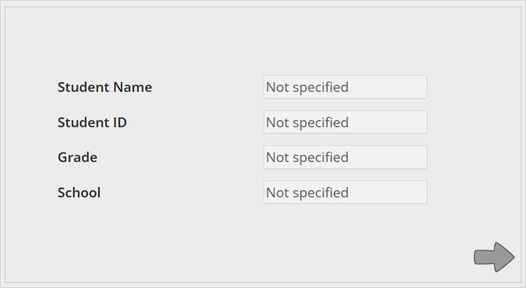
From the home screen, students are brought to a demographics screen where they confirm they have logged in to their test session.
Note: If the demographics presented on screen are not for the student taking the test, the student should close the test link. The correct test link then needs to be assigned and provided to the student via Access Code/QR Code.
- As the Test Administrator, refer to the Directions to confirm student information script for the specified test (Naglieri-V, Naglieri-NV, or Naglieri-Q) located in your Administration Manual and read aloud the black bolded text as written.
PATH: Administration Manual > Administer the Test > Directions to confirm student information
| Image Example of the Demographics Screen |
|---|
 |
Instructions Video
Before the Video is Played
An instructional video will appear; this video will provide your students with instructions about how to complete the test.
- As the Test Administrator, refer to the Directions before the video is played script for the specified test (Naglieri-V, Naglieri-NV, or Naglieri-Q) located in your Administration Manual and read aloud the black bolded text as written.
PATH: Administration Manual > Administer the Test > Directions before the video is played
| Image Examples of the Instruction Video | ||
|---|---|---|
 Verbal
 |
 Nonverbal
|
 Quantitative
|
After the Video Ends
- As the Test Administrator, refer to the Directions after the video ends script for the specified test (Naglieri-V, Naglieri-NV, or Naglieri-Q) located in your Administration Manual and read aloud the black bolded text as written.
PATH: Administration Manual > Administer the Test > Directions after the video ends
Sample Questions
Next, there are three sample questions. Sample questions will vary depending on the test type you are administering. Refer to the table below for examples.
| Test Type | Image Examples of the Sample Question Screens |
|---|---|
| Verbal | 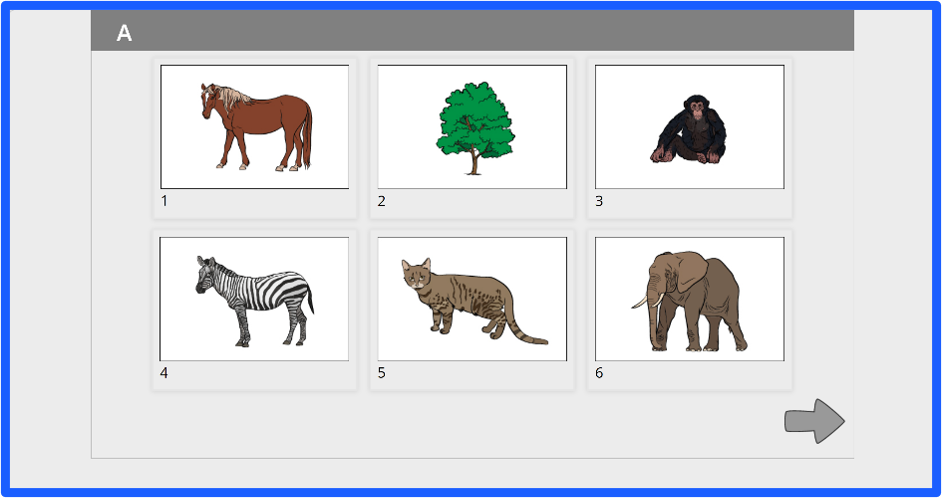 |
| Nonverbal | 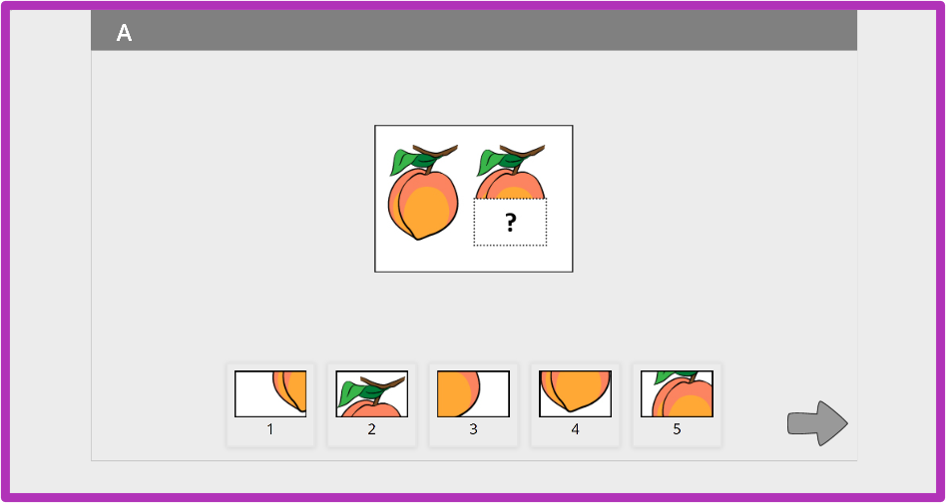 |
| Quantitative | 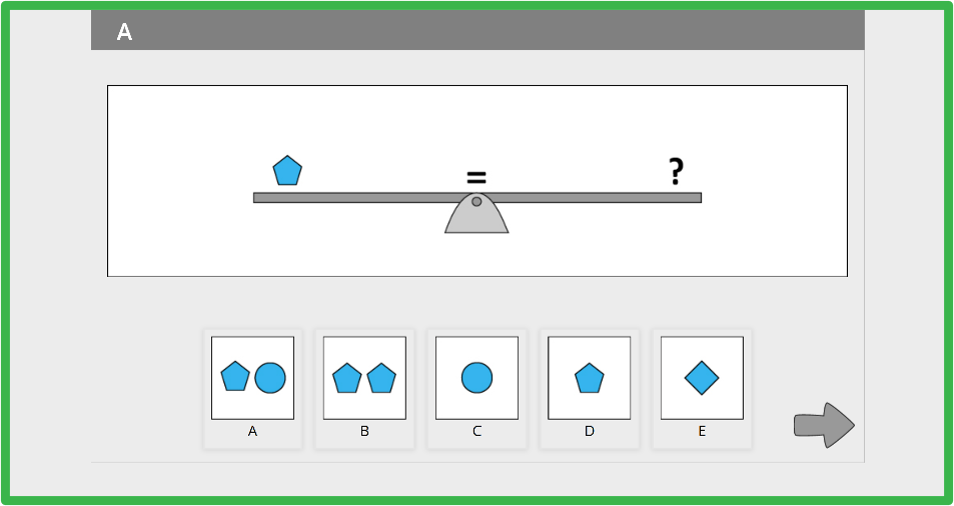 |
Functionality Summary
- When an incorrect answer is given, the correct answer will flash to let the student know the answer is incorrect.
| Test Type | Image Examples of the Correct Answer Flashing (correct answer highlighted with light grey box) |
|---|---|
| Verbal | 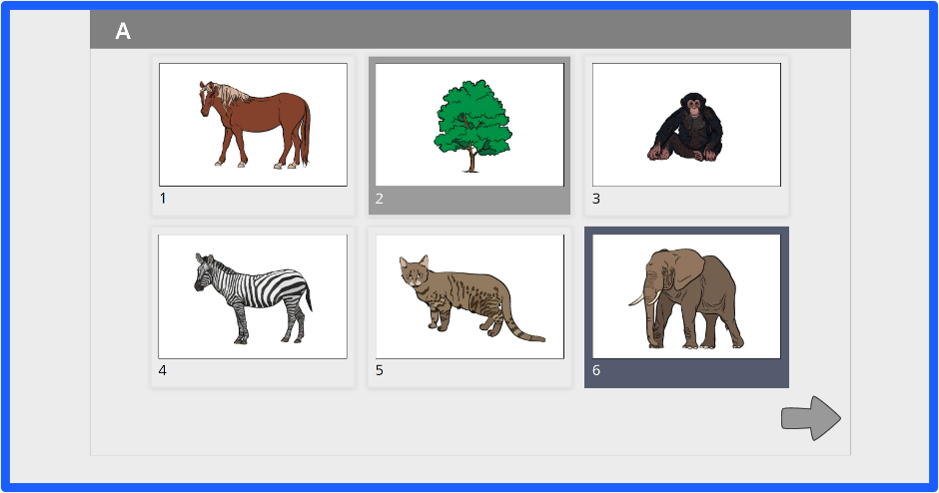 |
| Nonverbal | 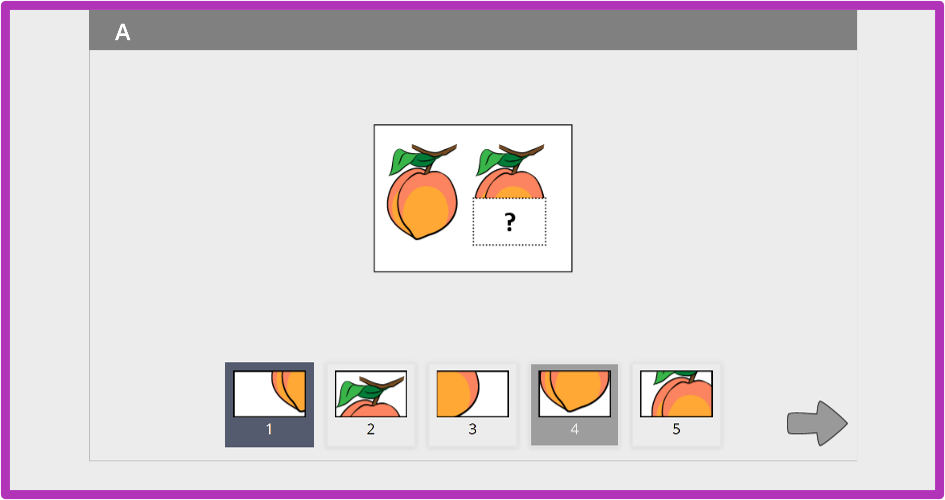 |
| Quantitative | 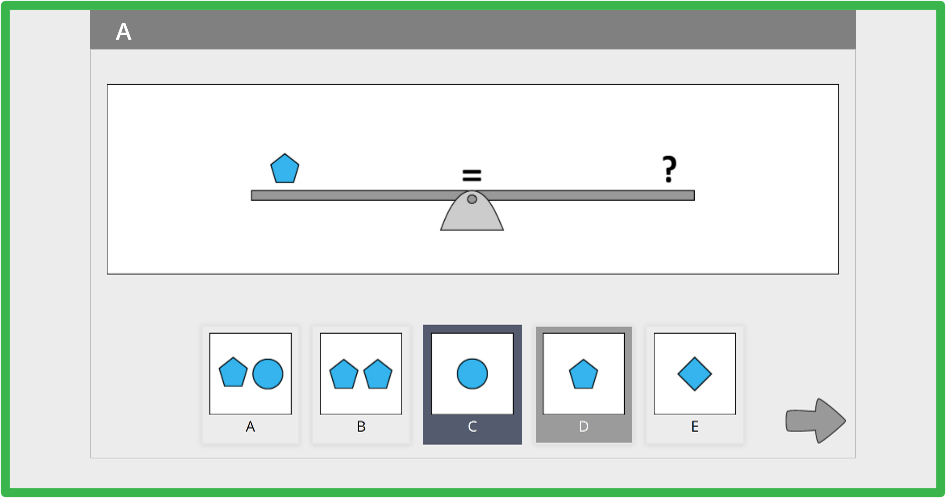 |
- When the incorrect answer is selected, the student will be unable to move to the next question until the correct answer is selected.
| Test Type | Image Examples of the Correct Answer Selected |
|---|---|
| Verbal | 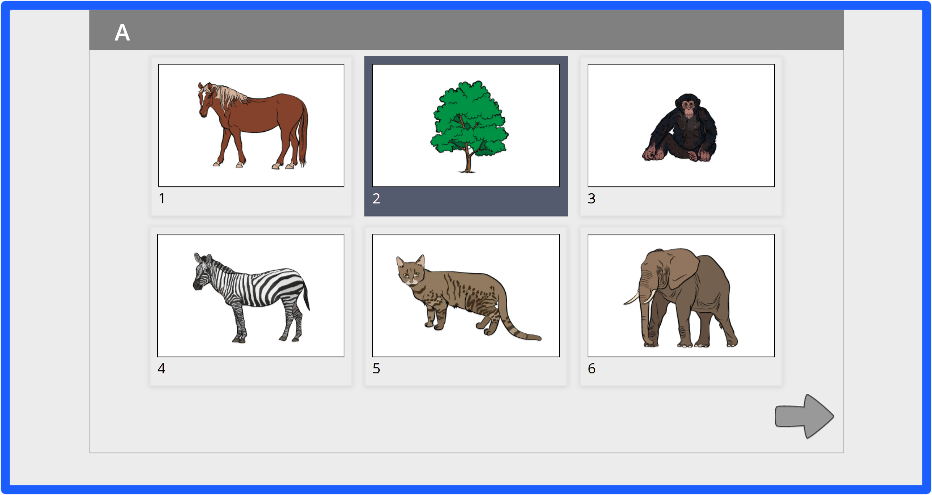 |
| Nonverbal | 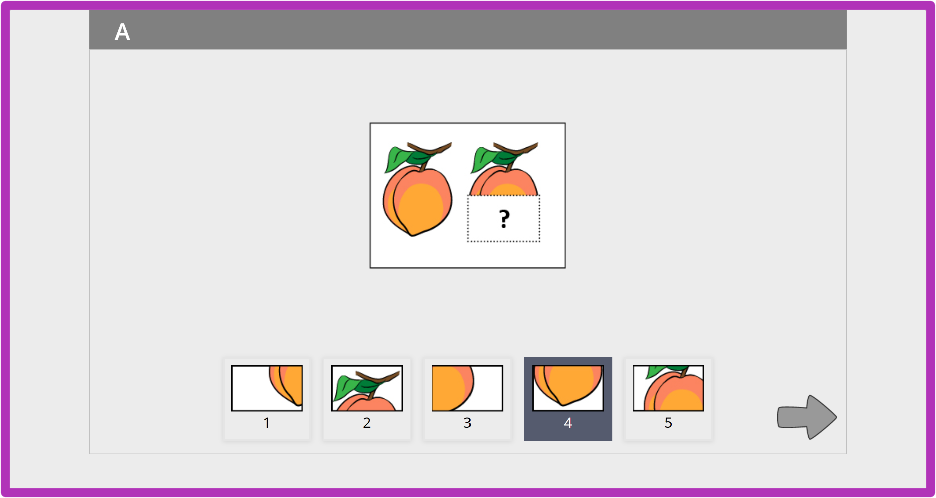 |
| Quantitative | 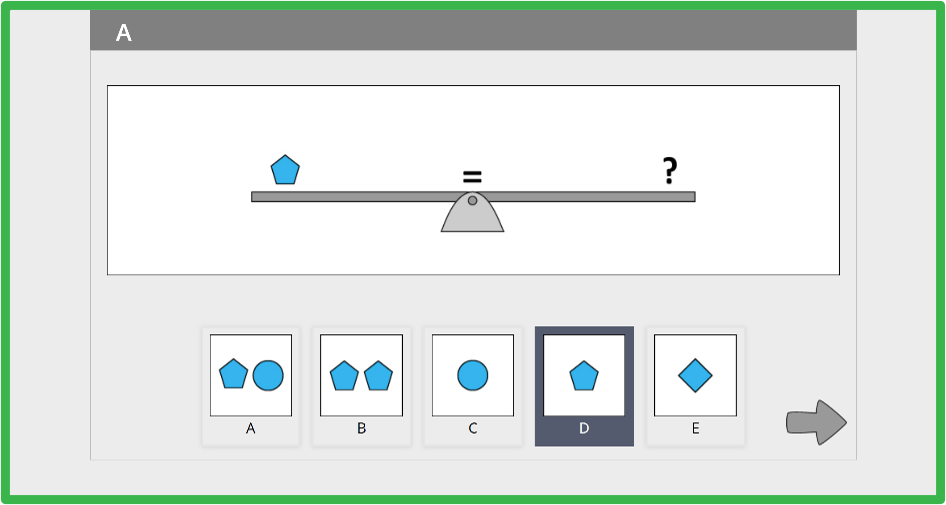 |
Start Screen
After completing the third sample question, students will arrive on a Start screen.
- As the Test Administrator, refer to the Starting the test script for the specified test (Naglieri-V, Naglieri-NV, or Naglieri-Q) located in your Administration Manual and read aloud the black bolded text as written.
PATH: Administration Manual > Administer the Test > Starting the test
| Image Example of the Start Screen |
|---|
 |
Test Questions
- The test is automatically timed. Note the start time so you know when students will reach the time limit.
- Start time and end time can be displayed on the board.
Functionality Summary
- Each test consists of 40 questions, with 1 question on each screen.
- The forward arrow will bring the student to the next question.
- The back arrow will bring the student to the previous question.
- If the student completes all 40 questions within the time limit, they will be taken to the review screen.
- If the student reaches the time limit, they will automatically time out of the test and reach the review screen.
| Test Type | Image Examples for Each Test Type |
|---|---|
| Verbal |  |
| Nonverbal |  |
| Quantitative | 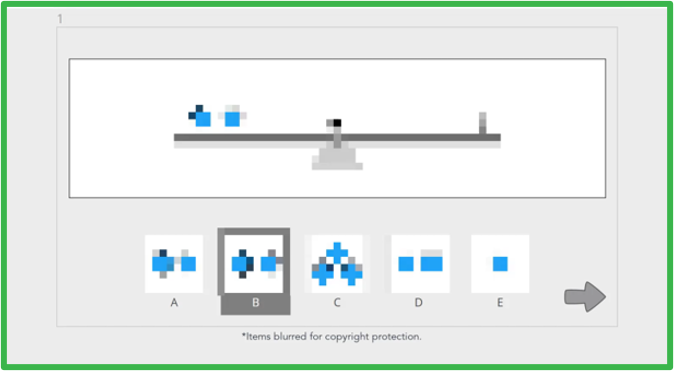 |
Review Screen
- Students are presented with the double arrows and must click the green right-arrow to submit the test results.
- Students will have one final opportunity to review their work before submitting their questions.
- To review their work, students can click the back arrow.
- To submit their test, students can click the green right-arrow.
Note: If the student clicks the green right-arrow, the test will be submitted. Until this point, the test may be progress-saved, but will not be officially complete. Once students submit their test, they cannot go back to the questions.
| Image Example of the Review Screen | |
|---|---|
| Review Screen | 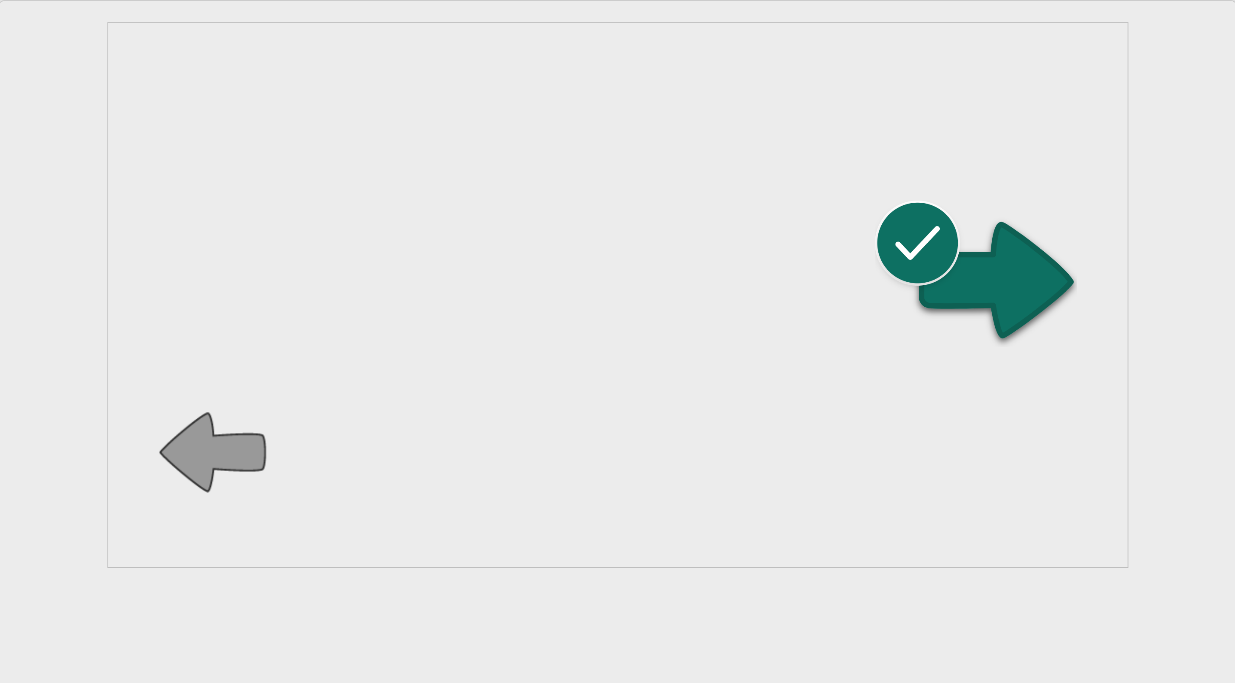 |
Submit Screen
- Ensure all students have submitted their tests and reached the Submit Screen (Stop Sign Screen).
- Direct students to wait quietly for others to finish and complete any prepared activities.
- If students reach the time limit, confirm they are automatically directed to the Submit Screen (Stop Sign Screen).
- As the Test Administrator, refer to the IF continuing with the next test in the same testing session script for the specified test (Naglieri-V, Naglieri-NV, or Naglieri-Q) located in your Administration Manual and read aloud the black bolded text as written.
PATH: Administration Manual > Administer the Test > IF continuing with the next test in the same testing session
| Image Example of the Submit Screen (Stop Sign Screen) |
|---|
 |
There are two Submit Screen scenarios:
a) If students have only been assigned one test OR completed the final test type assigned to them
- Student is presented with a Stop Sign. At this point, the test is submitted.
- Student has no options on the Stop Sign screen for 5 minutes, after which they are presented with another right-facing arrow. They can close the browser/tab at any point on this screen. Clicking the right arrow takes them to the Access Code page. Once they arrive there, they can close the browser or tab.
b) If students have multiple tests assigned
- For Students Accessing the Test Using Test Slips
a) If continuing with the next test in the same session, allow a small break before continuing to the next test.
- Student has no options on the Stop Sign screen for 5 minutes, after which they are presented with another right-facing arrow.
- Student can either
- scan the QR code on their test slip again to proceed to the next test, or
- The student can click the right arrow on the Stop Sign screen to navigate to the Access Code screen and manually type their access code.
b) If continuing on another day
- Instruct students to close their browser.
- Collect access code slips.
-
For Students Accessing the Test Using Direct SSO Access Method with the MHS Student App
- Instruct students to close browser.
a) If continuing with the next test in the same session
- As the Test Administrator, refer to the IF continuing with the next test in the same testing session script for the specified test (Naglieri-V, Naglieri-NV, or Naglieri-Q) located in your Administration Manual and read aloud the black bolded text as written.
PATH: Administration Manual > Administer the Test > IF continuing with the next test in the same testing session
- Ensure students remain logged in and seated with their devices.
- Student has no options on the Stop Sign screen for 5 minutes, after which they are presented with another right-facing arrow.
- Students should return to the MHS Student App and access the next test type from there.
- If the student clicks the right arrow on the Stop Sign screen, then they navigate to the Access Code screen; however, the access code field will not be auto-filled. Therefore, it is best for the student to return to the MHS Student App to access the test link.
b) If continuing on another day
- Instruct students to close their browser at the Submit Screen or Access Code screen.
Administration Guidelines
Qualifications for the Test Administrator
The Test Administrator is the individual who will proctor the Naglieri General Ability Tests. Professionals most
likely to serve in the role of a Test Administrator include classroom teachers, teachers of gifted and talented
students, gifted and talented coordinators, and trained professionals. The Test Administrator must be familiar with
all aspects of the instructions and procedures provided here. This person is also responsible for ensuring that the
setting and seating of all students will allow each student to work in a comfortable manner.
Grade Range
The Naglieri General Ability Tests are intended for students who are in Kindergarten to Grade 9 with corresponding
test forms for each grade level.
Administration Time
Depending on the grade-form, it takes approximately 35 to 40 minutes for the setup and administration of each of the
Naglieri General Ability Tests–Verbal (Naglieri–V), Naglieri General Ability Tests–Nonverbal (Naglieri–NV), and
Naglieri General Ability Tests–Quantitative (Naglieri–Q). Each testing session should allow for 5 to 10 minutes to
log students into the test website, provide a few procedural directions, and guide the students through three
practice questions. Students are given a maximum time limit to complete the 40 test questions on each test. See the
table below for maximum testing times by grade level. On average, students are able to complete each test within 20
to 25 minutes. The total testing time across all three tests is 90 minutes for Kindergarten to Grade 2, and 105
minutes for Grades 3 to 9.
Breakdown of Testing Time Limits (in minutes)
| Grade | Naglieri–V | Naglieri–NV | Naglieri–Q |
| Kindergarten | 30 | 30 | 30 |
| Grade 1 | 30 | 30 | 30 |
| Grade 2 | 30 | 30 | 30 |
| Grade 3 | 35 | 35 | 35 |
| Grade 4 | 35 | 35 | 35 |
| Grade 5 | 35 | 35 | 35 |
| Grade 6 | 35 | 35 | 35 |
| Grade 7 | 35 | 35 | 35 |
| Grade 8 | 35 | 35 | 35 |
| Grade 9 | 35 | 35 | 35 |
Note., Naglieri–V = Naglieri General Ability Tests –Verbal; Naglieri–NV = Naglieri General Ability Tests –Nonverbal; Naglieri–Q = Naglieri General Ability Tests –Quantitative
All three tests can be administered in one day or on separate days. It is recommended that the test be administered on separate days or with a significant break in between testing sessions. When determining how many testing periods to schedule per day, consider the age of the students completing the tests and related logistical issues. For example, younger students may need more breaks. The schedule can always be changed if the students appear fatigued or are having a hard time completing a test.
Repeated Administrations
Testing should not be repeated within a year for any grade. Under certain circumstances, a student who was unable to
complete the tests may be retested within a year. The student may have been unable to complete the tests due to
student fatigue or any other circumstances that made them unable to continue (e.g., the student asks to stop the
test or appears distressed at any point during testing). Results from an incomplete administration are considered
invalid and data from this administration should not be saved. Even if the test has been completed, the student may
need to be retested due to any Response Style Indicator flags which suggest the student may not have provided
reliable and usable data.
Administration Device Options
The Naglieri General Ability Tests can be administered on a desktop computer, laptop, Chromebook, or tablet (refer
to Hardware and Software Requirements in this document for specific criteria required to access the testing,
scoring, and reporting features). Ensure there is adequate space between each student’s testing device. Note that if
the student is using a tablet (for example, iPad or Galaxy) the device must be held in the landscape position to
ensure the questions are displayed correctly.
Input Device Options
Students can use a computer mouse, a touchpad, or a touchscreen to select their response. The Test Administrator
should be available to assist with inputting responses or to re-orient the student if they disengage from the test.
It is permissible for the student to switch from one input device to another (e.g., from touchscreen to mouse)
during the test if they have trouble with the original input method. If the student is using a computer mouse as the
input device, ask whether they are more comfortable left- or right-clicking and adjust the pointing device settings
accordingly. For younger children who do not have experience using a computer mouse, a touchscreen device is
recommended.
Administration Settings
The Naglieri General Ability Tests can be administered in a group setting or on an individual basis. The tests are
intended to be completed in person and in a quiet location without distraction. There should be appropriate seating
for the student in front of the testing device. There must be one Test Administrator to provide directions and it is
suggested to have at least one support personnel to assist the Test Administrator per session. Test Administrators
should walk around the room during testing to ensure students are completing the tests and have not navigated away
from the test or minimized the screen. It is recommended that younger students (i.e., Kindergarten and Grade 1) be
tested in a one-on-one or small group setting, when possible, with close supervision by the Test Administrator. Note
that the test directions and timing differ slightly for Kindergarten and Grade 1 students. Therefore, it is
recommended that students in Kindergarten and Grade 1 be tested separately from students in other grades. Students
in higher grades can be tested in larger groups. For Grades 3 to 9, the test directions and timing are the same, so
it is possible to combine students within these grades for testing sessions. Always ensure that all students in a
given administration are completing the same test (i.e., Naglieri–V, Naglieri–NV, or Naglieri–Q).