
TOPICS
Understanding MGI user access
MGI access is determined by two settings:
- Permissions, which control the actions a user can complete.
- Visibility, which controls whether the user can view information for the entire district or for one assigned school.
Permissions can be enabled independently, so users may have different combinations of access based on their responsibilities. A user does not need every permission to use MGI.
App administrator
When a new district is set up, MHS creates the initial App Administrator account. This user can help the district establish additional MGI users and assign the permissions and visibility needed for their responsibilities.
The App Administrator will typically have the Manage Users permission. This permission allows the user to:
- Add and manage district users.
- Assign or update user permissions.
- Change their own or another user’s visibility.
- Activate access for teachers who were imported with the student roster.
- Create additional users who can manage users, when appropriate.
Because a user with Manage Users can change access for users throughout the district, this permission should be limited to a small number of designated users who are responsible for administering MGI access.
Other MGI users
Other district or school staff can be given access to MGI based on the tasks they need to complete. Their permissions can be configured individually.
Available permissions include:
- Manage Users: Add and manage district users and update their MGI permissions.
- Manage Students: Add and edit individual students.
- Manage Test Plans: Create and download test plans.
- Track Completion: View testing completion information and identify which assessments students have completed.
- Manage Reports: Generate reports and view results.
- Upload Student Data: Update student roster information when this option is appropriate for the district’s rostering process.
MGI users should be added using their district email address. After their access is activated, they receive an invitation email that they must accept before signing in for the first time.
District-level and school-level visibility
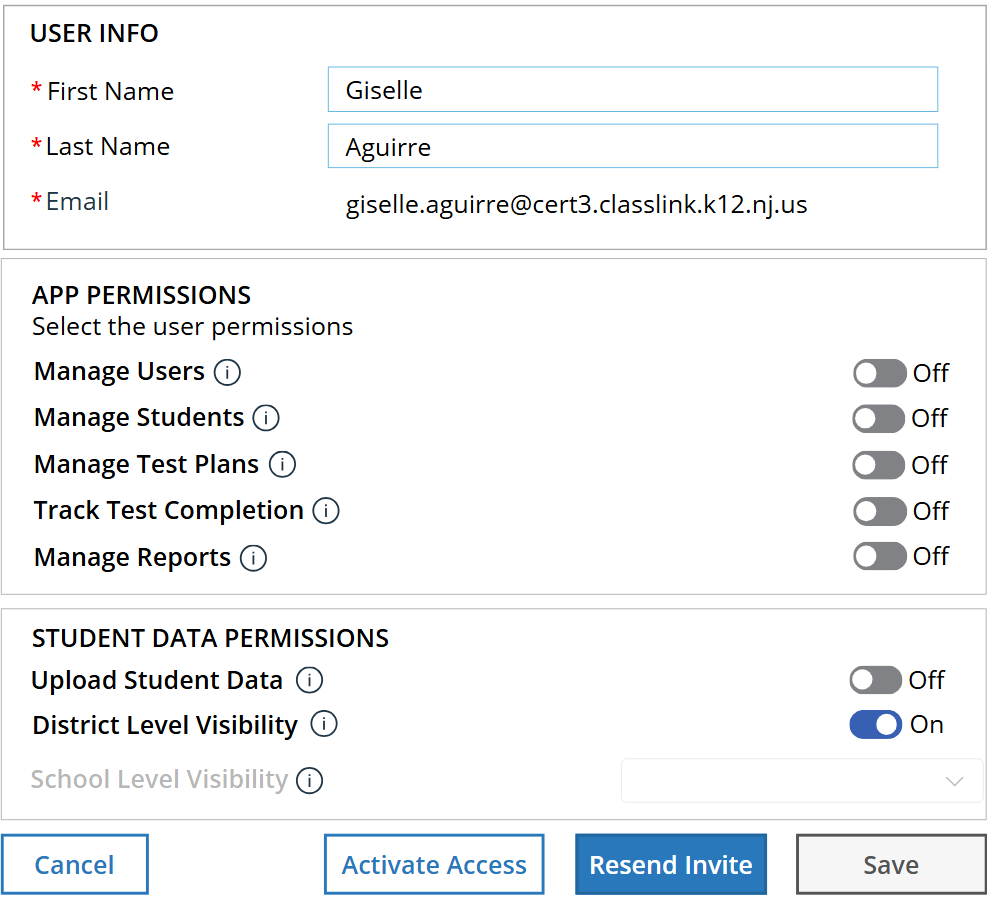
MGI users default to district-level visibility.
- District-level visibility allows a user to view information across the district.
- School-level visibility limits the user to one selected school.
Users who do not require access to the entire district should be assigned school-level visibility. A user can be assigned to only one school, although a school can have multiple users. Any user with the Manage Users permission can update their own or another user’s visibility.
Teachers, proctors, and test supervisors
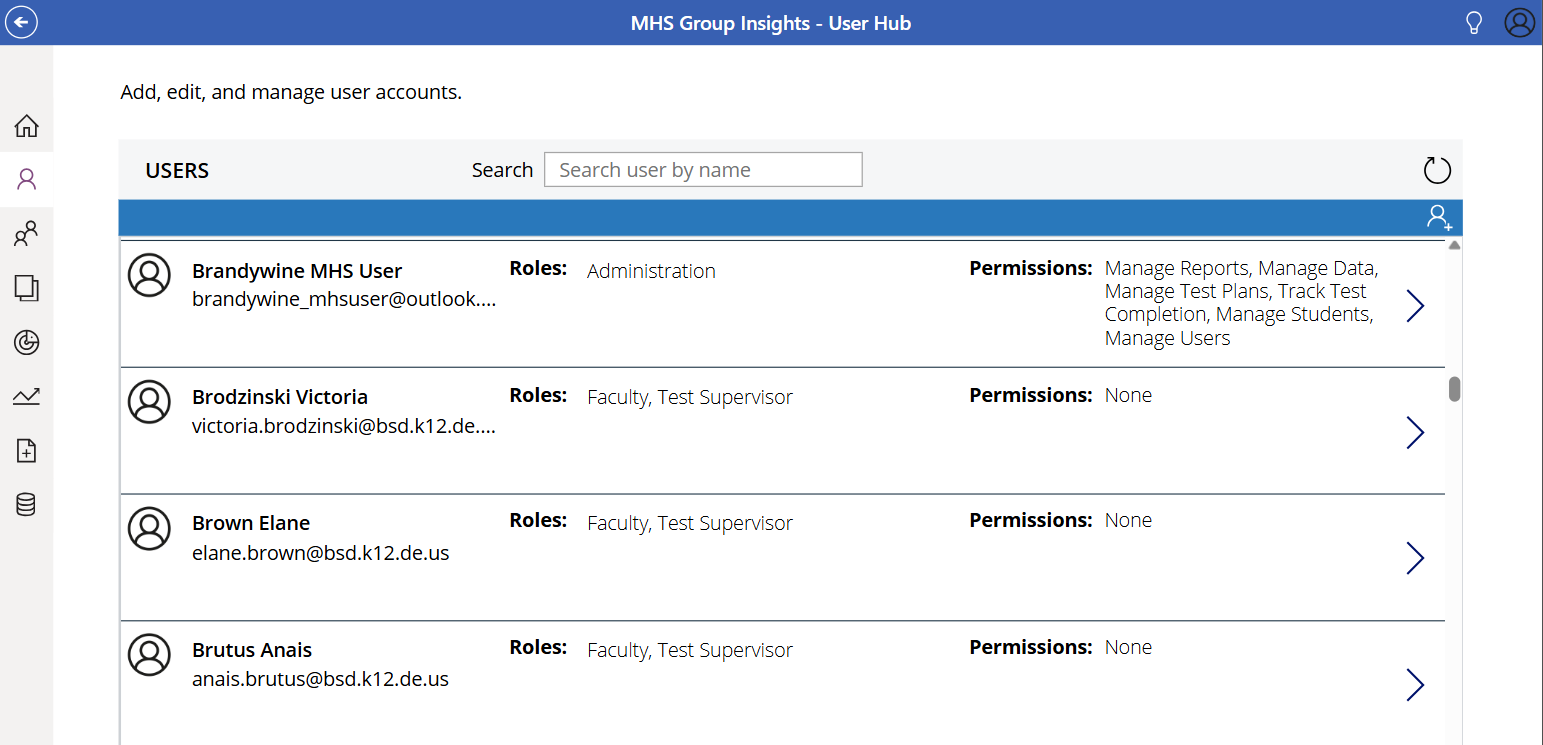
Teachers included in the student roster are imported into the MGI User Hub with the role Faculty, Test Supervisor. This role has no permissions and does not provide access to MGI by default.
Teachers, proctors, and test supervisors do not need MGI access solely to administer testing. They should be given access only if they also need to complete MGI tasks, such as managing students, creating test plans, tracking completion, or generating reports.
To give an imported teacher access, a user with the Manage Users permission must:
- Locate the teacher in the MGI User Hub.
- Edit the user.
- Select the required permissions.
- Select Activate Access.
- Save the changes.
Selecting Activate Access is required for the teacher to receive an invitation to sign in.
Resources for teachers, proctors, and test supervisors
Teachers, proctors, and test supervisors have access to Test Day Support resources to help them prepare for and administer the assessments. These resources include the required Administration Manual, Test Day Checklists, and test demonstration videos with step-by-step administration guidance. These resources are available through the Test Day Support section of the MGI Help Site.
Recommended access practices
When assigning access:
- Give users only the permissions required for their responsibilities.
- Limit Manage Users to a small number of designated users because it allows them to change access for others across the district.
- Limit Manage Reports to users who are responsible for reviewing and interpreting results.
- Use caution when assigning Manage Students as it shares student information with the user.
- Limit Upload Student Data to a small group responsible for student rostering.
- Use school-level visibility when a user does not need district-wide information.
- Review access when a user changes roles or responsibilities.