
TOPICS
How to change your assessment settings
You can control assessment-level preferences through the assessment settings feature.
The assessment settings can only be changed by users with an Administrator account. Changes made to these settings will be applied to both the administrator and all of their sub-users.
To change an assessment setting
- Click Account Settings in the left menu.
The Account Settings page appears.
- In the Assessment Settings section, click Manage Assessment Settings.
The Assessment Settings page appears.
- Click the Select Assessment dropdown menu and select the product that you wish to change the settings for.
A list of relevant assessment settings will appear.
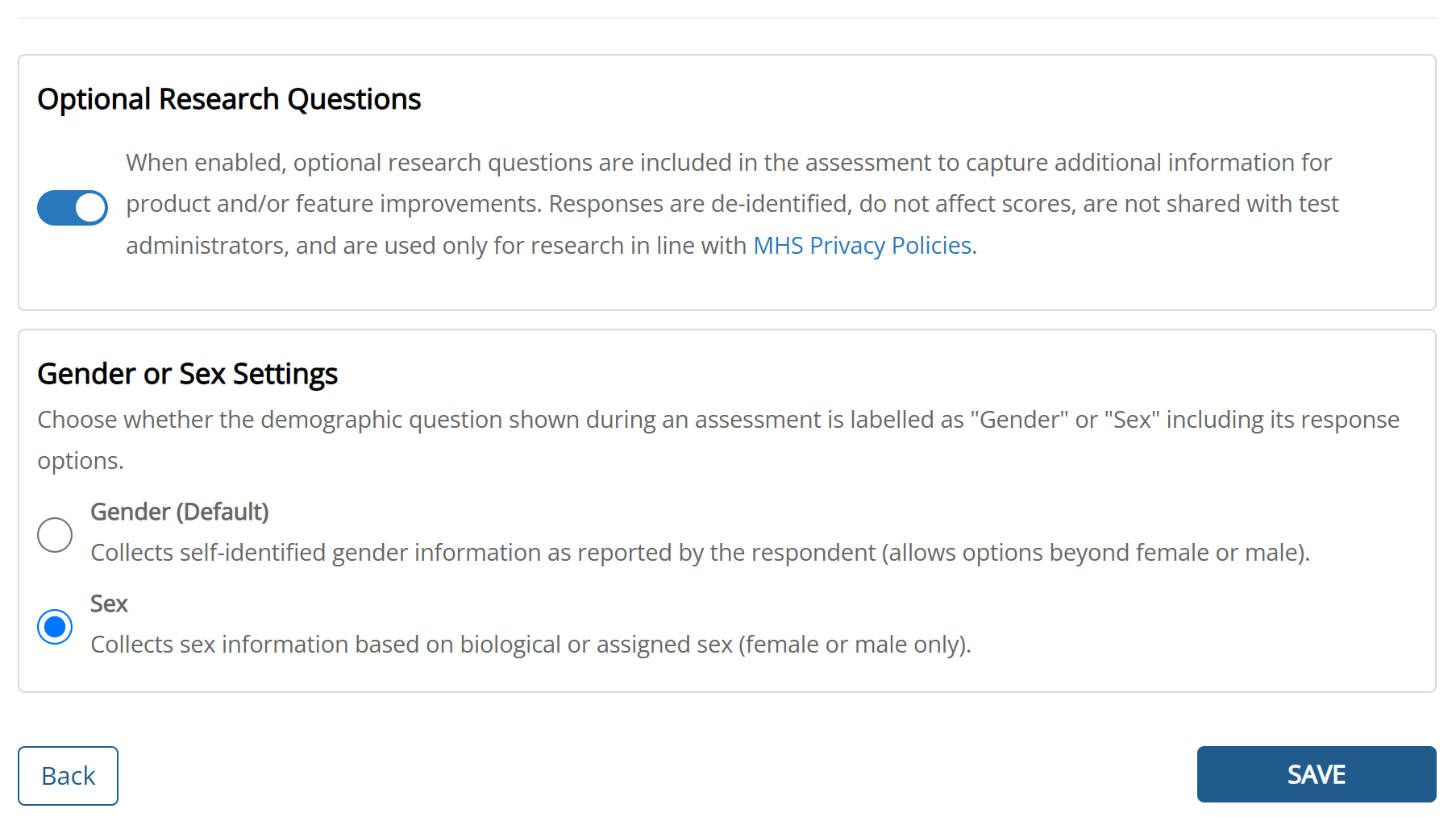
There are two settings you can change: Optional Research Questions and Gender or Sex Settings.
When Optional Research Questions is enabled, optional research questions are included in the assessment to capture additional information for product and/or feature improvements.
Gender or Sex Settings allows you to choose whether the demographic question and response options shown during an assessment are labelled as "Gender" or "Sex."
- Change the desired setting by clicking the radio button or toggle switch.
- Click Save.
The new assessment setting will now be applied to the selected product.
Not all settings are applicable to all products. If the assessment settings are not relevant to the product you want to select, then that product will not be listed in the dropdown menu.
The optional research questions are turned on by default, meaning that the questions will automatically appear in the assessment. To remove the Optional Research Questions, follow the steps listed above and click the toggle switch off.
The setting is turned to “Gender” by default. This means that the demographic question and response options in an assessment are labelled as “Gender.” To switch the question and responses to “Sex,” please select the button beside the “Sex” option.