
TOPICS
How to delete a client
You can delete a client from within the client’s profile.
To delete a client
- Click My Clients in the left menu.
A table of your clients appears.
- Double-click the name of the client you want to delete.
The client profile opens.
- Click Delete.
A message appears asking you to confirm the deletion.
- Click Delete.
The client is removed from the My Clients page and moved to the Deleted Items page.
To recover a deleted client
After a client is deleted, their listing remains on the Deleted Items page for seven days before being permanently deleted. To recover a client:
- Click Deleted Items in the left menu.
A table of your deleted assessments and clients appears. The Days Remaining column displays how many days remain until the client or assessment is permanently deleted.
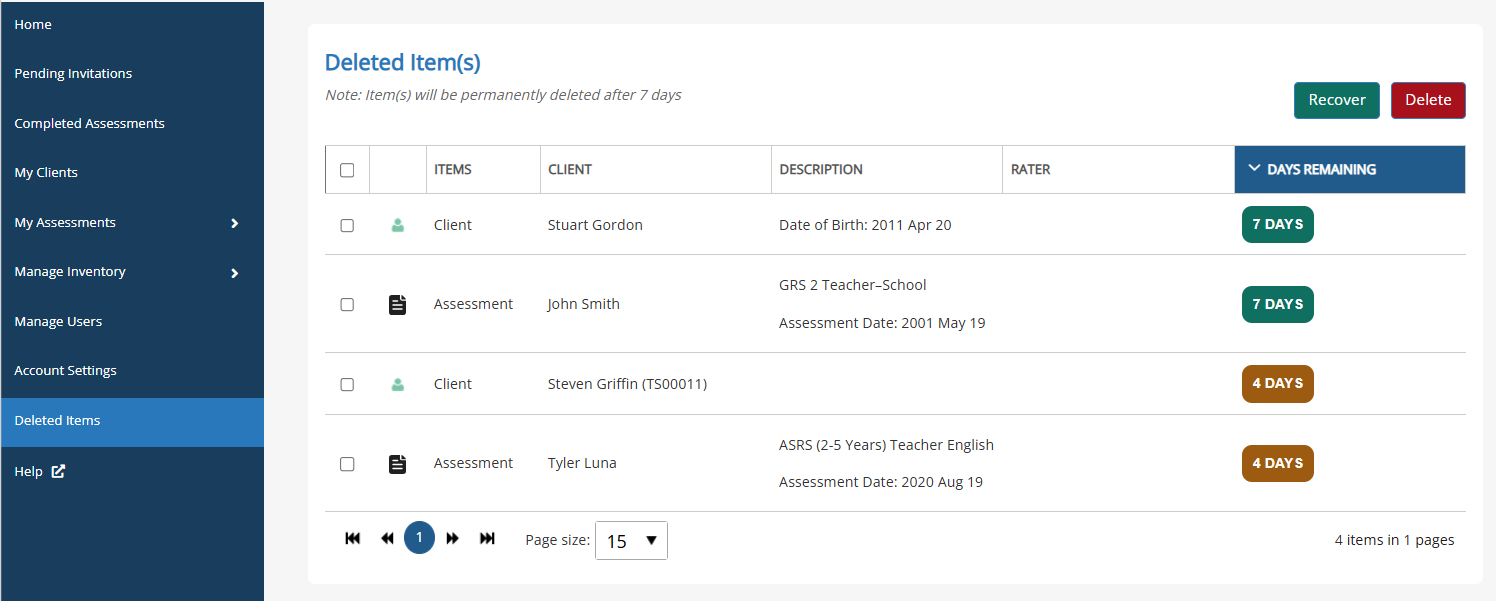
- Select the checkbox to the left of the client and then click Recover.
A message appears asking you to confirm the recovery.
- Click Recover.
The client is removed from the Deleted Items page and moved back to the My Clients page.
When you delete a client, they remain on the Deleted Items page for seven days before being permanently removed.
If you want to permanently delete a client before the seven‑day period ends:
- In the left menu, select Deleted Items.
- Select the checkbox next to the client you want to permanently delete.
- Click Delete.
- When the confirmation message appears, click Delete again.